YouTube to MP3 How To: Safe & Effective Methods for Any Device

Ever found a great YouTube video and thought, “I just want the audio for later”? Maybe it’s a podcast-style interview, a music track, a lecture, or that oddly relaxing 3-hour rain soundtrack you somehow can’t live without. The problem is that YouTube doesn’t exactly make it easy to carry those sounds around as simple audio files.
The good news: converting a YouTube video to MP3 is surprisingly quick and easy. Once you know the right tools and a few basic tricks, the whole process can take less than a minute, basically the time it takes to refill your coffee. In this guide, we’ll walk through how YouTube-to-MP3 conversion works, the safest tools to use, and how to get the best audio quality without downloading anything sketchy along the way.
Converting YouTube videos to MP3 is a simple process that involves copying the video URL, pasting it into a converter tool, selecting your preferred audio quality, and downloading the file. The whole process takes less than a minute once you know the right steps.
There are several methods to convert YouTube videos to MP3, from online converters that work in your browser to desktop software and mobile apps. Each option has different features, quality levels, and ease of use. Some tools offer higher audio quality at 320 kbps, while others provide basic 128 kbps conversion that works fine for podcasts and spoken content.
This guide walks you through the safest and easiest ways to extract audio from YouTube videos. You'll learn how to choose reliable conversion tools, avoid common problems, and get the best audio quality for your needs.
Key Takeaways
- Copy the YouTube video URL and paste it into a converter tool to extract the audio as an MP3 file
- Choose 320 kbps bitrate for music and 128 kbps for podcasts to balance quality and file size
- Use browser-based converters without ads for safer downloads that don't require software installation
Understanding YouTube to MP3 Conversion
Converting YouTube videos extracts the audio track and saves it as an MP3 file on your device. This process involves specific technical steps, file format considerations, and legal boundaries that affect how you can use the downloaded content.
How MP3 Conversion Works
When you convert a YouTube video to MP3, a converter tool accesses the video URL and separates the audio stream from the video data. The audio gets compressed into the MP3 format using specific bitrate settings.
Most converters let you choose between different quality levels measured in kilobits per second (kbps). Common options include 128 kbps, 192 kbps, and 320 kbps. Higher bitrates preserve more audio detail but create larger file sizes.
The conversion happens either on your device or on a remote server. Browser-based tools process the audio on external servers and send you the finished file. Desktop software handles everything locally on your computer. Online converters typically work faster for single videos, while installed programs offer more control over batch processing.
What Is an MP3 File?
An MP3 file is a compressed audio format that reduces file size while maintaining acceptable sound quality. The format removes frequencies that human ears struggle to detect, making audio files roughly 10 times smaller than uncompressed versions.
MP3 files work on virtually every device and platform. You can play them on smartphones, tablets, computers, car stereos, and portable music players. This universal compatibility makes MP3 the most popular format for storing and sharing music.
The compression efficiency means a typical 4-minute song at 320 kbps takes up about 9.6 MB of storage space. Lower quality settings like 128 kbps reduce this to around 3.8 MB per song, letting you store more music on devices with limited storage.
Legal Considerations and Copyright
Converting YouTube videos to MP3 exists in a complex legal area that depends on the content type and your intended use. You can legally download music and videos you created yourself or content where you have explicit permission from the copyright holder.
Creative Commons licensed content and royalty-free educational materials are generally safe to convert for personal use. Fair use provisions may protect certain educational, research, or backup purposes in some countries.
However, converting copyrighted music, movies, or other protected content without permission violates copyright laws in most jurisdictions. Commercial use of converted audio almost always requires proper licensing. Different countries enforce these rules with varying strictness, so understanding your local regulations matters.
Benefits of Offline Listening
Offline listening eliminates dependence on internet connectivity. You can enjoy your audio during flights, subway commutes, or in areas with poor cell reception without interruptions or buffering.
Downloading music as MP3 files helps you avoid data charges from your mobile carrier. Streaming audio constantly uses bandwidth that counts against your monthly data limit. Pre-downloaded files play without consuming any cellular data.
MP3 conversion also gives you control over your audio library. You can organize files into custom playlists, edit metadata, and keep backups of important recordings. Extracting audio from YouTube lets you preserve educational content, podcasts, or training materials that might be removed from the platform later.
Choosing the Right YouTube to MP3 Converter
Different converter types offer varying levels of convenience and functionality, while key features like audio quality and processing speed determine your overall experience. Safety considerations and converter reputation help you avoid security risks.
Types of Converters: Online, Desktop, and Mobile Apps
Online converters work directly in your web browser without requiring downloads or installations. You simply paste a YouTube URL and receive your MP3 file within seconds. These tools are convenient for occasional use but depend on internet connectivity.
Desktop applications like 4K Video Downloader and MediaHuman YouTube to MP3 run on your computer and often provide more features. These programs let you convert multiple videos at once and typically offer faster processing speeds. You can use them offline once installed.
Mobile apps bring conversion capabilities to your smartphone or tablet. Apps like Documents by Readdle on iOS allow you to convert videos while on the go. Android and iOS both have various YouTube to MP3 converter options available through their app stores.
Key Features of Reliable MP3 Converters
Audio quality settings determine how your final file sounds. Look for converters that offer 320 kbps output for high-quality music or 128 kbps for voice content where file size matters more.
Conversion speed affects your workflow efficiency. The best converters process videos in under 10 seconds for shorter clips.
Batch processing lets you convert multiple videos simultaneously. This feature saves significant time if you need to download entire playlists or multiple videos.
File format options beyond MP3 provide flexibility. Some converters offer AAC, WAV, or FLAC formats for different use cases. Dirpy and similar services often include basic audio editing tools that let you trim clips or adjust volume levels before downloading.
Assessing Safety and Avoiding Malware
Not all video conversion sites are genuine, and some pose serious security threats. Malicious converters may bundle unwanted software or expose you to harmful advertisements.
Check for HTTPS encryption in the converter's URL. This indicates a secure connection that protects your data during the conversion process.
Avoid converters that require unusual permissions or ask you to disable antivirus software. Legitimate tools never need these requests to function properly.
Read user reviews and check ratings before using a new converter. Sites with poor reputations often have complaints about malware, aggressive ads, or stolen payment information. Browser-based converters that don't require software installation generally carry lower security risks than downloadable programs.
Popular YouTube to MP3 Converters
YTMP3 operates as a straightforward online converter with a simple interface. You paste your URL, select MP3 format, and download your file within moments.
MediaHuman YouTube to MP3 is a desktop application that handles batch downloads efficiently. The software supports playlist conversion and maintains consistent audio quality across multiple files.
4K Video Downloader offers both free and paid versions with different feature sets. The program supports high-quality audio extraction and works across Windows, Mac, and Linux systems.
Several free YouTube to MP3 converter options exist for users with different needs. When selecting a converter, consider how frequently you'll use it and what specific features matter most for your purposes.
Step-by-Step: How to Convert YouTube Videos to MP3
You can convert YouTube videos to MP3 using web-based tools that require no downloads, desktop applications like MediaHuman and 4K Video Downloader that offer advanced features, command-line utilities such as yt-dlp and FFmpeg for maximum control, or mobile apps designed for Android and iOS devices.
Online Conversion: Using Web-Based Tools
Web-based converters let you convert YouTube to MP3 without installing software. You simply copy the YouTube video URL from your browser's address bar and paste it into the converter's input field.
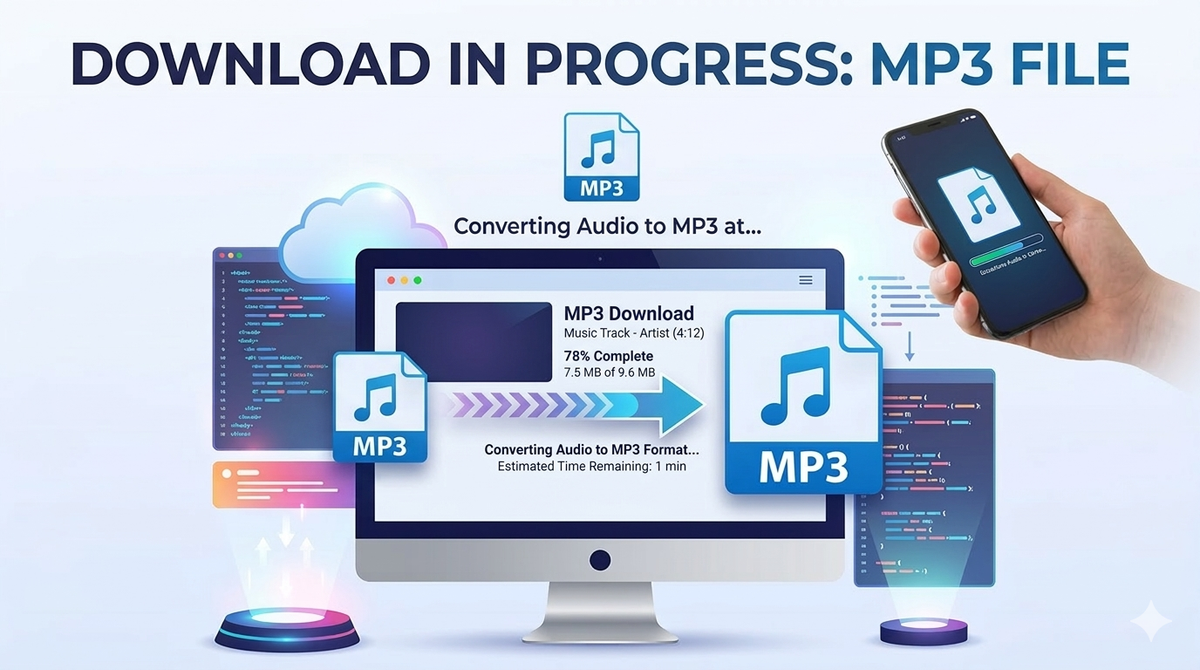
Most online tools follow the same basic process. Select your preferred audio quality, typically between 128 kbps and 320 kbps. Click the convert button and wait for the tool to process your video. The conversion takes around 20-25 seconds on average.
Once processing completes, click the download button to save the MP3 file to your device. You should organize downloaded files into folders to keep track of your audio library.
Important considerations:
- Choose ad-free converters to avoid security risks
- Higher bitrates produce better audio quality but larger files
- Some converters have limits on video length
Desktop Applications: MediaHuman, 4K Video Downloader, and More
Desktop applications provide more features and reliability than web tools. MediaHuman is a popular choice that supports batch downloading and maintains audio quality during conversion. You install the program once and use it offline whenever needed.
4K Video Downloader offers similar functionality with a clean interface. These programs let you convert multiple videos at once by adding URLs to a queue. You can also extract playlists and choose specific audio formats beyond MP3.
Desktop tools typically provide these advantages:
- Batch processing for converting multiple videos simultaneously
- Custom output settings including bitrate and format selection
- Automatic metadata extraction for proper file organization
- No internet dependency after downloading the source video
You download and install these applications from their official websites. They update automatically to handle YouTube's changing technical requirements.
Command-Line Tools: yt-dlp & FFmpeg
yt-dlp is a command-line program that gives you complete control over how to convert YouTube to MP3. You need to install yt-dlp through your system's package manager or by downloading it directly.
After you install yt-dlp, open your terminal or command prompt. Type yt-dlp -x --audio-format mp3 [VIDEO_URL] and replace [VIDEO_URL] with your YouTube link. The program downloads the video and extracts the audio automatically.
FFmpeg works alongside yt-dlp to handle the actual audio conversion. You can specify additional parameters like --audio-quality 0 for highest quality or --embed-thumbnail to add album artwork.
Common yt-dlp commands:
yt-dlp -x --audio-format mp3 --audio-quality 320K [URL]for maximum qualityyt-dlp -x --audio-format mp3 --add-metadata [URL]to preserve video information
Mobile Solutions: Android and iOS Methods
Android users can convert YouTube videos to MP3 using dedicated apps from the Google Play Store. These apps function similarly to web-based converters but are optimized for mobile devices.
iOS users face more restrictions due to Apple's App Store policies. You can use Documents by Readdle, which includes a built-in browser and download manager. Open the app, navigate to a web-based converter, and save the MP3 file directly to your device.
Both platforms support web-based converters through mobile browsers. Copy the video URL from the YouTube app, paste it into a mobile-friendly converter, and download the file. Your converted audio saves to your device's downloads folder or your chosen location.
Advanced Tips for Quality, Safety, and Usability
Getting the best results from YouTube to MP3 conversion requires knowing how to pick the right audio settings and avoid common problems. Understanding bitrate options, handling multiple downloads, and keeping your files organized will make the whole process smoother and safer.
Best Bitrate and Audio Settings for MP3
The bitrate you choose directly affects how your MP3 file sounds and how much space it takes up. Higher bitrates mean better sound quality but larger files.
Most YouTube videos have audio encoded at 128kbps or lower. Choosing a higher bitrate when you extract audio from YouTube won't improve quality beyond what the original video contains. Setting your converter to 320kbps for a video that only has 128kbps audio just wastes storage space.
Recommended bitrate settings:
- 128kbps: Good enough for speech, podcasts, and casual listening
- 192kbps: Balanced choice for most music
- 256kbps: High quality for music with good detail
- 320kbps: Maximum quality, but only worth it if the source video has high-quality audio
Converting YouTube content works best when you match your output settings to the source quality. Check the video quality before downloading to avoid unnecessarily large files.
Batch Downloads and Playlists
Downloading songs one at a time wastes time when you need multiple files. Batch conversion lets you download entire playlists or channels in one go.
Desktop software usually handles batch downloads better than online tools. YouTube to MP3 converters in 2025 support processing whole playlists or even full channels in a single job.
When downloading playlists, make sure your converter can automatically name files based on video titles. This saves you from manually renaming dozens of files later. Some tools also grab metadata like artist names and album art during bulk downloads.
Watch your internet connection during large batch jobs. A dropped connection can interrupt the entire process. Desktop applications often resume interrupted downloads, while online converters usually make you start over.
Organizing and Managing MP3 Files
Proper file organization makes finding and playing your downloaded music much easier. Create a clear folder structure before you start collecting MP3 files.
Set up folders by artist, album, or genre depending on how you listen. For example: Music > Artist Name > Album Name. This keeps everything easy to find.
Use ID3 tags to add information to your MP3 files. Tags include the song title, artist, album, year, and cover art. Many tools that convert YouTube videos can automatically add tags, but you might need to fix mistakes or fill in missing information.
Essential file management steps:
- Name files consistently (Artist - Song Title.mp3)
- Remove special characters that cause problems on different devices
- Add album artwork for a better listening experience
- Back up your collection to prevent losing files
Music library software like MusicBee or iTunes can scan your folders and help organize everything. These programs fix tags, find duplicates, and create playlists.
Avoiding Common Issues and Troubleshooting
MP3 conversion doesn't always go smoothly. Knowing how to fix common problems saves time and frustration.
File won't download: The video might be private, deleted, or blocked in your region. Age-restricted videos often fail with online converters. Try a different converter or check if the video plays normally on YouTube first.
Poor audio quality: You're either choosing too low a bitrate or the source video has bad audio. Converting YouTube to MP3 only works as well as the original video allows.
Converter shows errors: Clear your browser cache and cookies if using an online tool. For desktop software, restart the program or check for updates.
Downloaded file won't play: The MP3 format might be corrupted. Try downloading again or use a different converter. Some converters create incomplete files if your connection drops during download.
Run antivirus scans on files from unfamiliar converters. Stick to safe and reputable conversion tools to avoid malware risks.
Just remember to choose trustworthy tools, match your bitrate to the original audio quality, and keep your MP3 library organized so you can actually find what you downloaded later. Follow those simple habits and you’ll have a smooth, safe workflow, no buffering, no ads, and no mysterious files named “audio_final_FINAL_v2.mp3.”